Switch on Home
Return to Home and locate Light / Dark at the top right.
First use defaults to Light and does not follow Windows. If the selector is absent, check the actual application entry and update files.
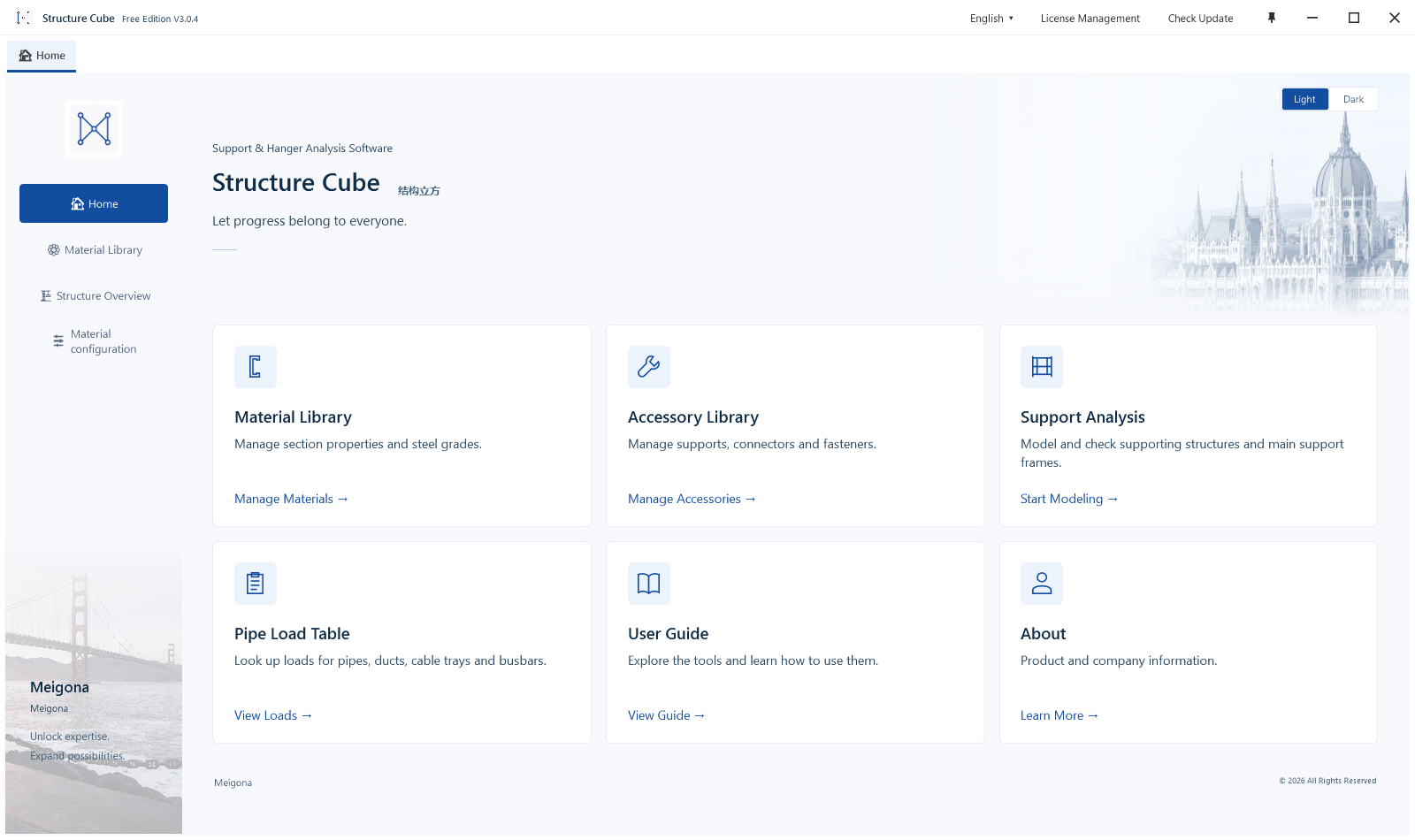
One view, two appearances
Switching does not modify a project, recalculate, change results or change export rights. Colour alone does not prove refreshed results.
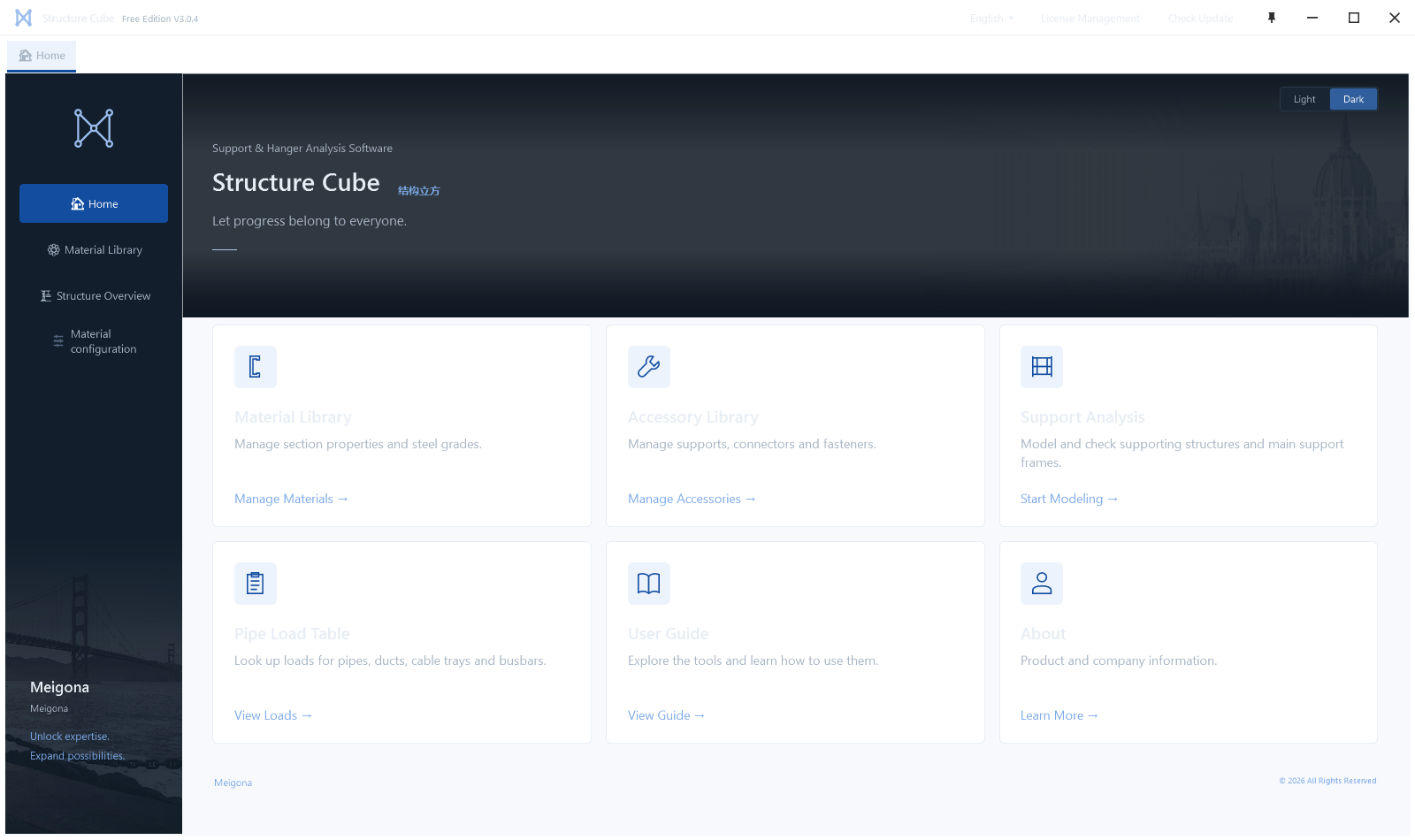
Remembered on this computer
Free and enterprise editions remember local choices separately; preferences do not travel with an account or project. Missing or damaged preferences fall back to Light without blocking use.
Do not reinstall because a plug-in did not change theme. If persistence fails on the same computer, edition and entry, record reproduction steps and contact support.
Reports and plug-ins have separate scopes
Reports retain white print colours. Tutorial captures, videos, photographs and textures retain their content. This selector applies to the main application, not CAD/Revit plug-ins or host appearance.