Identify the issue
STRUCTURE CUBE / V3.0.4REFERENCE CAPTURE
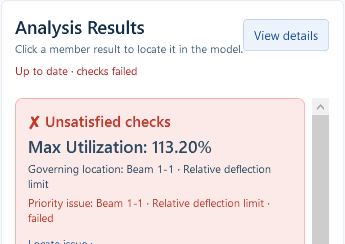
Beam deflection is 6.79 mm, above the 6.00 mm limit for this example.
STRUCTURE CUBE / V3.0.4 / DEMONSTRATION
Choose products, build the support, apply pipe loads, check results and export.
01 / PREPARE
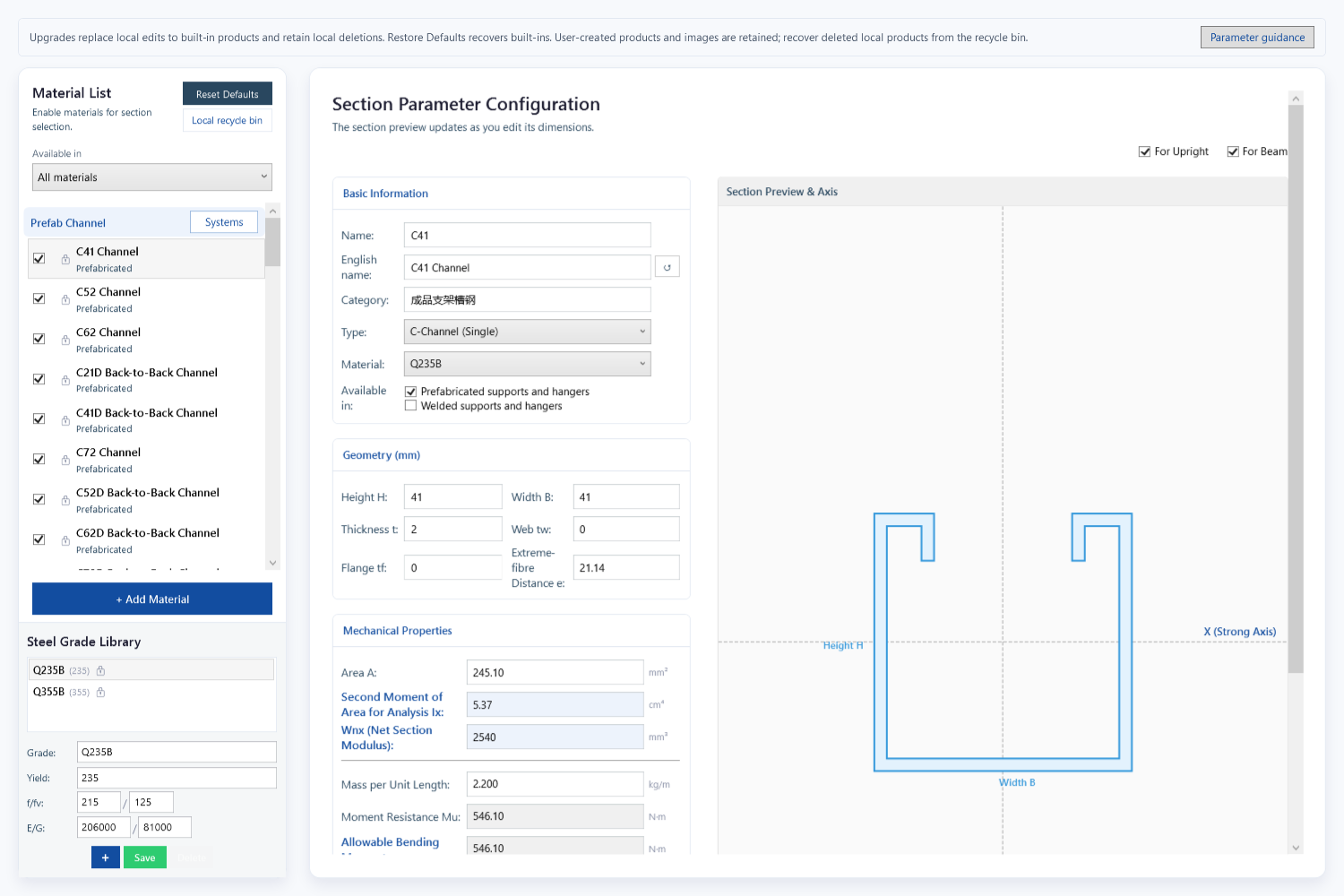
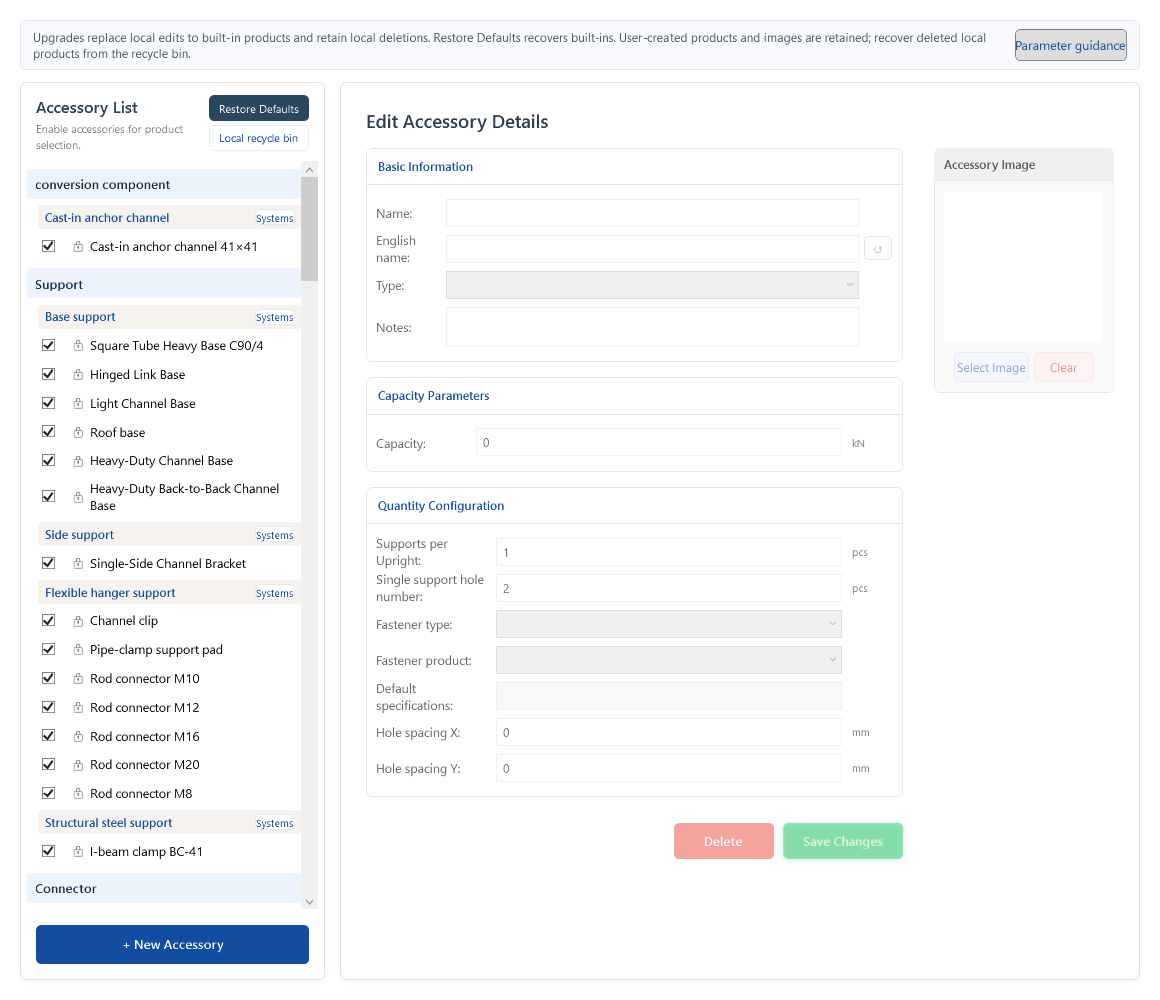
The demo uses built-in products. All editions support custom material and accessory libraries.
02 / MODEL & LOAD

SELF-BUILT DEMO / INPUTS
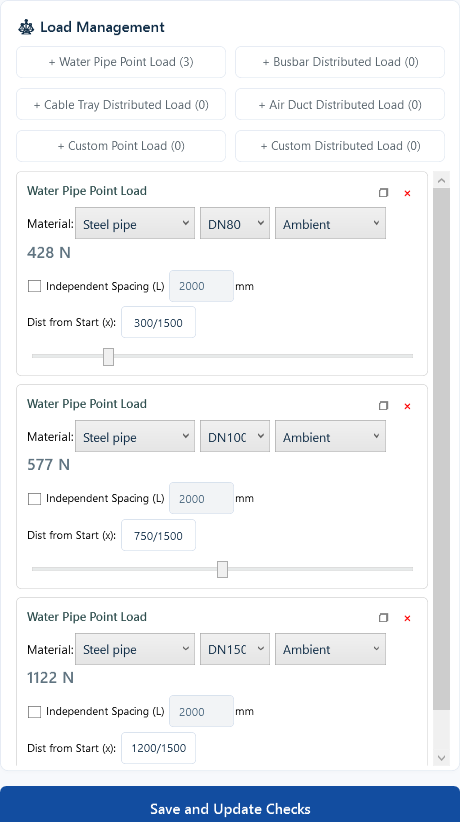
| Pipe | From beam start | Design load |
|---|---|---|
| DN80 | 300 mm | 428 N |
| DN100 | 750 mm | 577 N |
| DN150 | 1200 mm | 1,122 N |
Pipe selections determine the displayed design loads. Member self-weight is also included. Check each input against the arrangement.
03 / ANALYZE & SELECT
Identify the issue
Beam deflection is 6.79 mm, above the 6.00 mm limit for this example.
Run smart sizing
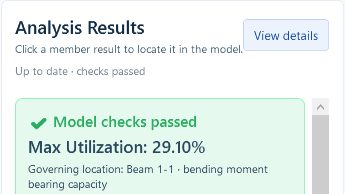
Smart sizing selects a C41D beam; deflection reduces to 1.21 mm.
Pipe sizes, positions, span and support spacing stay the same. Sizing also updates the matching connector configuration and member self-weight. Maximum utilization changes from 113.20% to 29.10%.
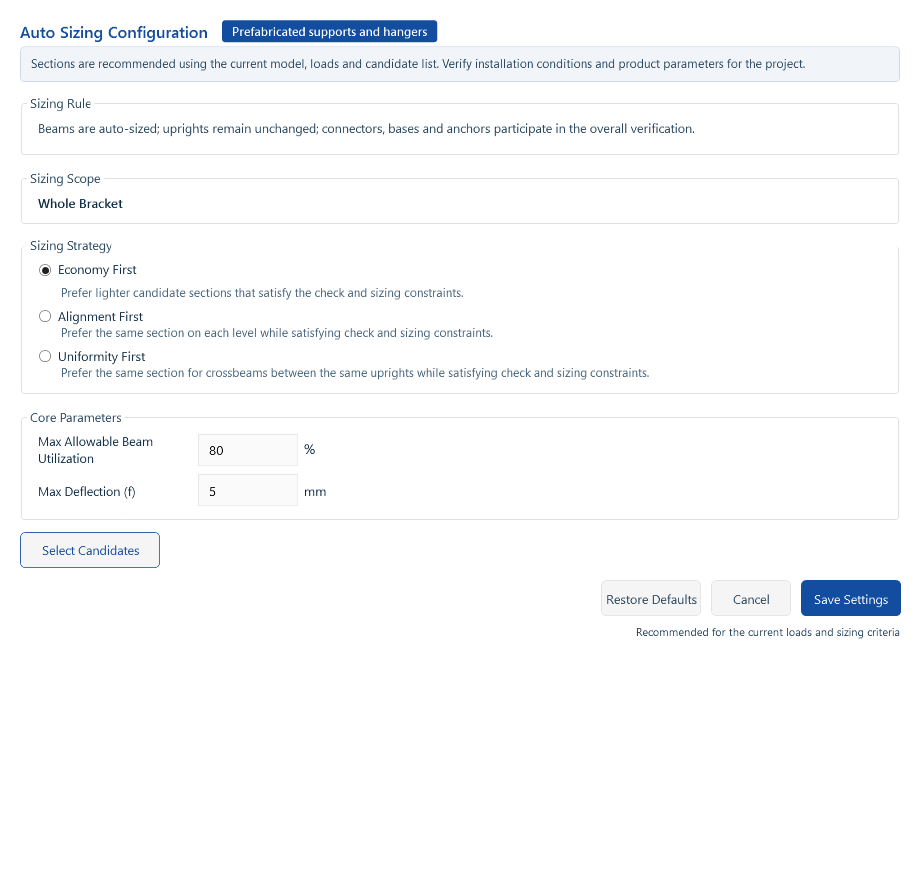
This run compares C41 and C41D using Economy first and selects C41D. Columns remain unchanged; the whole support is recalculated afterwards.
The 80% and 5 mm sizing targets are checked separately from the structural design limits. Review members and connections after a successful selection.
04 / DELIVER
Check project, support and author/reviewer details, then choose the output format. Both montages below are actual exports of this pipe-support case.
The settings capture is Free Edition; report excerpts come from a separate enterprise build. Formats and watermarks depend on edition and project origin; free projects retain their export limits in enterprise editions. Engineering conclusions require the complete report.


ENTERPRISE-NATIVE PROJECT · ACTUAL EXCERPTS FROM A SEPARATE ENTERPRISE BUILD · ENLARGE EACH PAGE


ENTERPRISE-NATIVE PROJECT · ACTUAL EXCERPTS FROM A SEPARATE ENTERPRISE BUILD · ENLARGE EACH PAGE
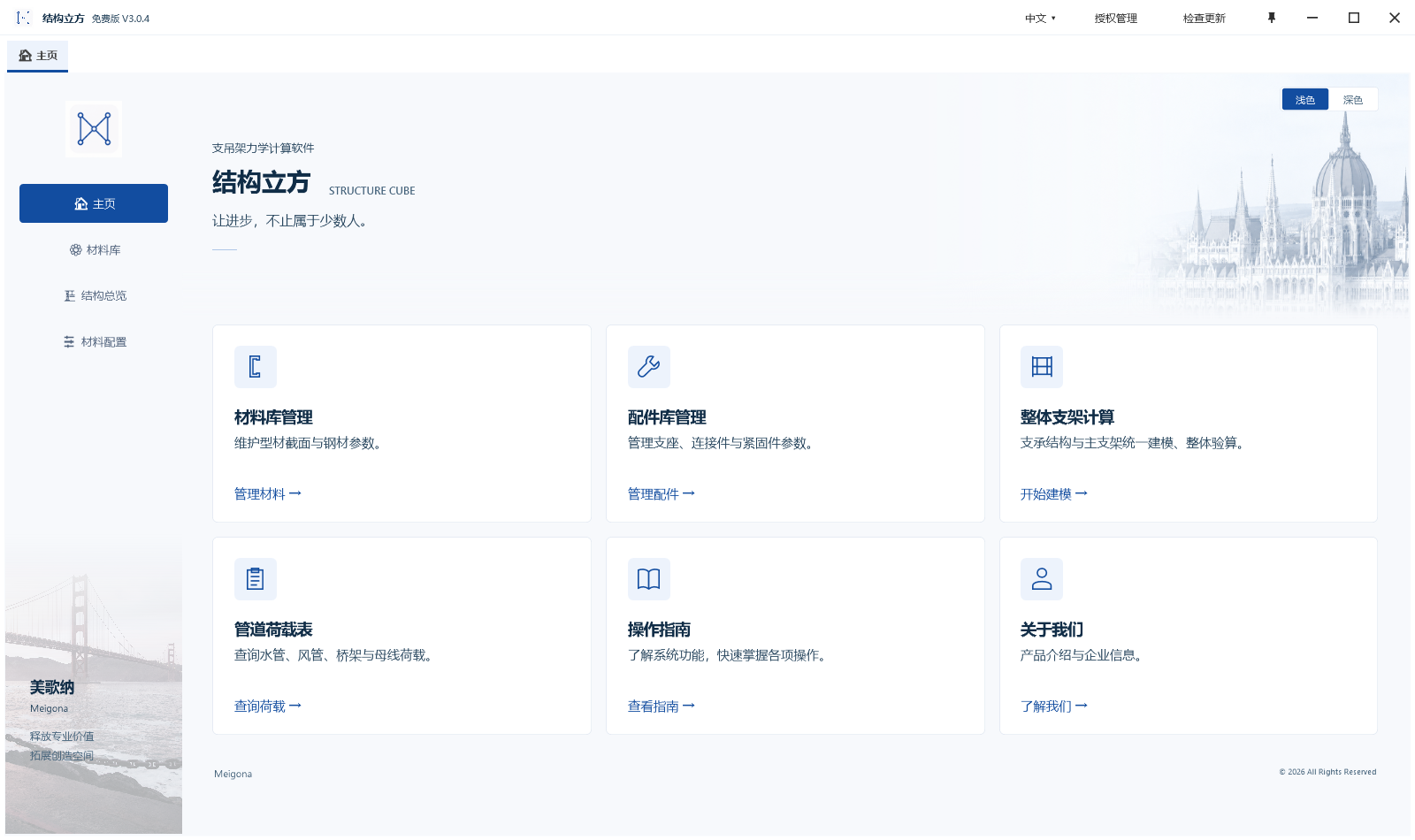
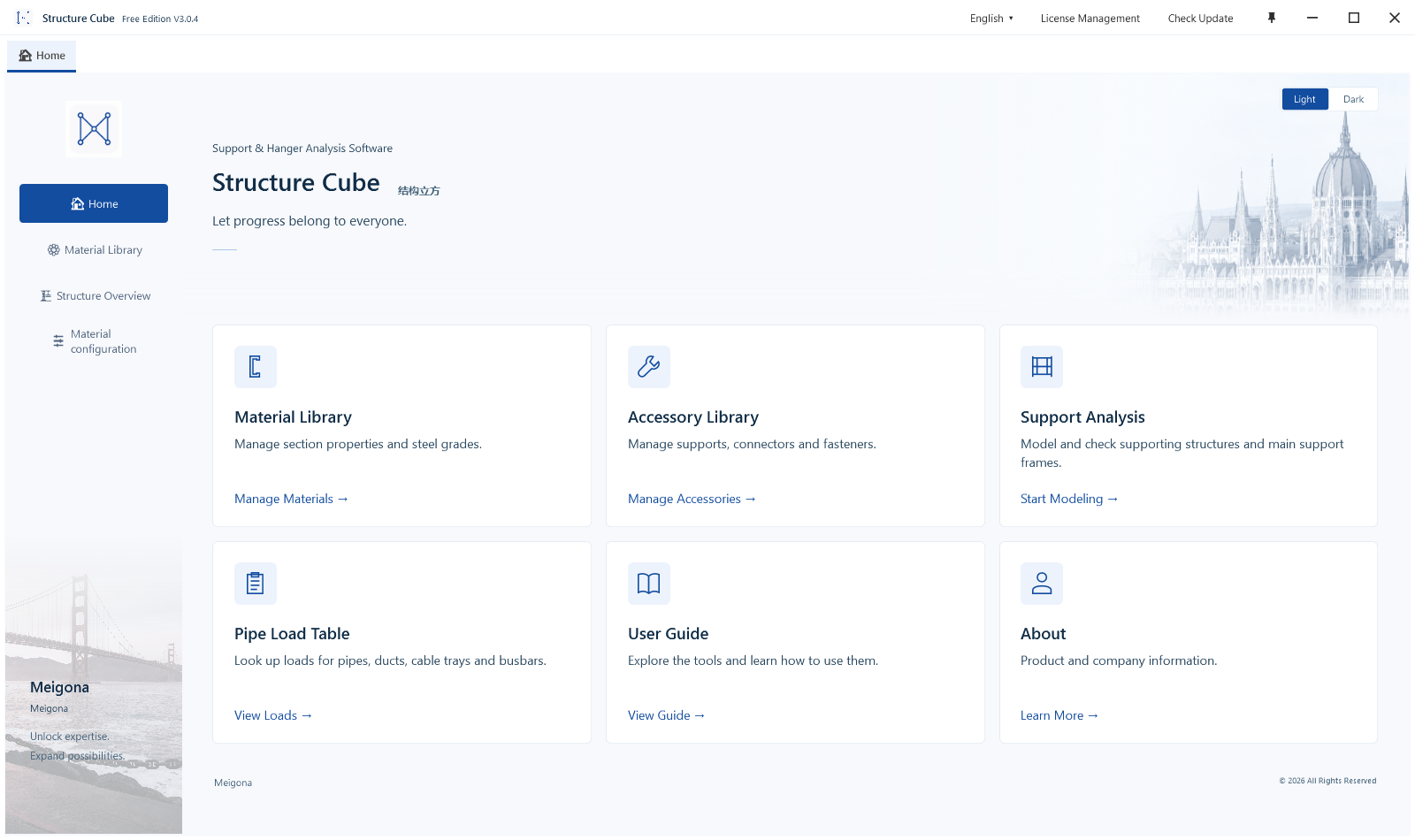
Prepare translations for user-entered project and organization names; they are not automatically translated.
Recognize, review adopted data, then calculate in the main application. Candidates, review items and transfer receipts are not passed checks.
CAD · Use Import settings, Pipe picking and Transfer in the Structure Cube ribbon: SCIMPORTSETTINGS, SCPIPEMAP and SCEXPORT. Start with one complete support and related services; review dimensions, sections, sizes and load assignment after transfer.
Revit · In the Structure Cube tab, review General settings before One-click calculation. Preselect multiple targets, or follow the single-object pick prompt when none is selected; Esc cancels. Review each group’s families, roles, sizes and pending items. Confirm all does not replace review.
After reception, verify the calculation unit, model and adopted values in the application before calculating. Accepted or queued receipts do not establish that a model has finished loading. Keep the host version, entry point, exact message and a redacted screenshot when troubleshooting.
These are current V3.0.4 operation facts, not completed end-to-end acceptance inside CAD/Revit. The application Light/Dark selector does not change plug-ins or Autodesk hosts. Confirm compatible versions and adaptation scope for the actual environment and agreement.
Current main-application captures use actual V3.0.4 Free Edition controls in Light mode with isolated self-created data. Both cases were reloaded and calculated; smart sizing was executed for the prefab case. Free Edition supports watermarked PDF only; enterprise outputs are verified separately using an enterprise build. These are not customer projects or independent engineering reviews.
Public material is limited to physical arrangements, pipe inputs, result headers and cover, basis and arrangement excerpts from the same cases. Internal models, source code, force diagrams, connection parameters and full reports are excluded. Project conclusions require professional review of complete inputs and reports.